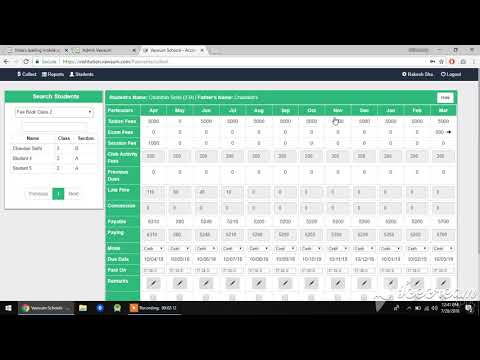
How do I generate a fee receipt copy in Vawsum?
Fee receipt copies are generated from the cashier panel. Log in to the admin panel, go to Fees then Collect and sign in with the cashier’s credentials. Select the academic year and fee book, open the student’s cash panel, tick the month you need, click Update Fees and confirm, then click Receipts and Print. The receipt can be printed as a school receipt or a student receipt.
Steps to generate a fee receipt copy
- Log in to https://institution.vawsum.com/admins using your credentials.
- Click on Fees at the top bar of the page.
- Now click on the Collect option on the Dashboard page. You will be redirected to the login page.
- Enter the cashier’s username and password.
- Select the academic year for which you want to generate the fee receipt copy.
- Select the Fee Book according to the class of the student whose fee receipt copy you want to generate, in the Search Student dialogue box.
- Click on the student’s name whose fee receipt copy you want to generate.
- The Cash Panel for the respective student pops up.
- Edit the changes, if any, in the fee column of the respective month, then click the checkbox at the end of that month’s column.
- Click on Update Fees and then Confirm to make the payment.
- Click on the Receipts option at the end of the month’s column and then click Print. The configuration of the receipt can be changed from School Receipt to Student Receipt by changing the preference.
Watch the video to know more.