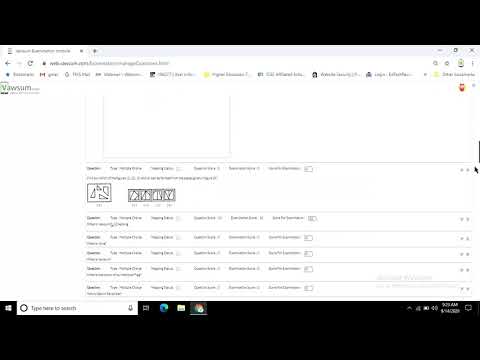
How do I upload subjective questions in the Vawsum exam module?
Subjective questions can be added two ways from the admin panel at institution.vawsum.com/admin. Enter them one at a time through Examinations then Add Subjective Questions, or add them in bulk through Import Question by downloading the Excel template, filling it in and uploading it. Answer permissions and word limits are set afterwards under Examinations then Questions.
Steps to add subjective questions manually
- Log in to https://institution.vawsum.com/admin using your credentials.
- Click on Examinations at the left pane, then select Add Subjective Questions from the dropdown menu.
- A new page will open. Next to Question 1 you will find a dropdown arrow; click it and a text editor will open where you can enter and edit your subjective question.
- Click on New Questions at the bottom to add another question.
- Repeat the previous two steps until you have finished entering and editing all your subjective questions, then click Save.
Steps to set answer permissions and word limit
- Select Examinations from the left pane and then click on Questions.
- Scroll down to find your subjective question and set permissions for allowing copy-paste or allowing file upload by clicking the checkbox next to them.
- Mention the word limit you want to set for the answer in the box next to the word limit.
Steps to import subjective questions from Excel
- Click on Import Question under Examination on the left pane of your screen. A new page will open; inside Import Subjective Questions click Download Excel.
- Open the downloaded Excel sheet and click Enable Editing at the top.
- Enter the details in the Excel sheet, then click File at the topmost left-hand corner and choose Save As. Specify the name and location of the sheet and save it.
- Click Choose file next to Upload Excel, choose the file you just saved and click open.
- Click Upload Excel to finally upload the subjective questions.
Watch the videos to know more.